 How to resolve AdBlock issue?
 beyerdynamic HEADPHONE LAB
Plug-in for beyerdynamic Headphones
Author: Peter Kaminski
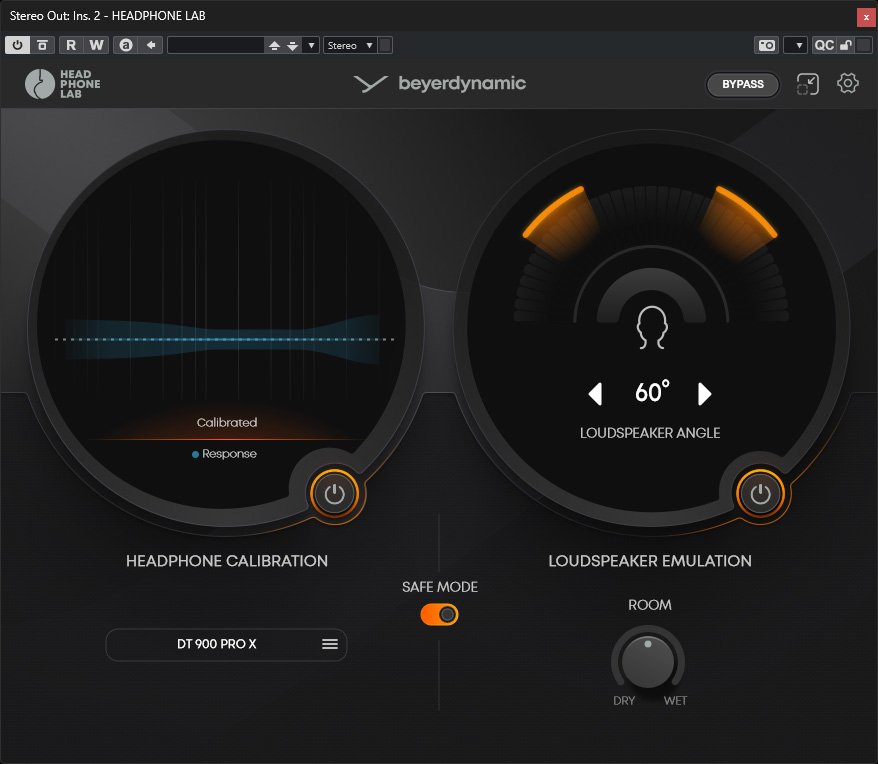
In January 2026, beyerdynamic presented HEADPHONE LAB at NAMM, a plug-in for its headphones that can be downloaded free of charge from the beyerdynamic website. The plug-in is used to calibrate the frequency range and offers a speaker/studio simulation.
Requirements and Installation
The plug-in is available for macOS and Windows in VST3 and AAX formats, as well as for macOS in AudioUnit format.
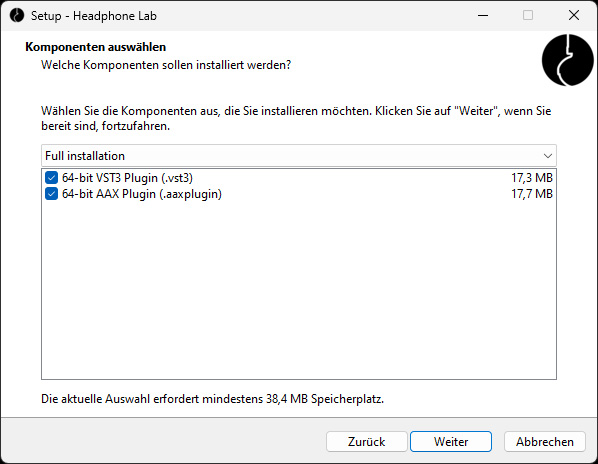
The installation is carried out using an installer software that allows you to select the desired plug-in formats. To download the software, you must fill out a form on the beyerdynamic website, and then you will receive a download link via email.
Operation
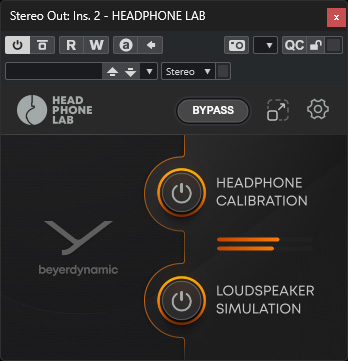
The concept and functionality of Headphone Lab can best be explained by looking at how it is operated. There is a standard interface (see first image), as well as a switchable compact display with access to the most important functions (see above). You can switch between the two by clicking on an icon. This is a practical function that allows you to make good use of the available screen space. The compact display also shows the individual functions that can be switched on and off for headphone calibration and speaker emulation.
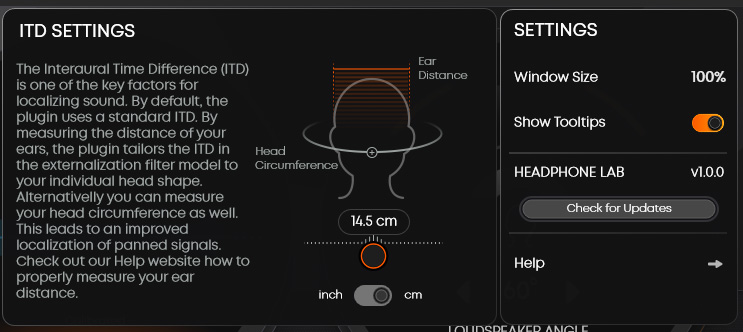
The gear icon takes you to the settings dialog, where you can adjust the window size of the plug-in and check for software updates, among other things. However, the left side of the settings dialog is particularly important, as this is where you can specify the user's ear distance, either directly or via the head circumference, which is easier to determine. This is an important parameter for using the plug-in, and you should not simply estimate a value here, but actually measure it. The head distance is necessary because the plug-in also works with a head-related transfer function (HRTF). However, no further personalization is required.
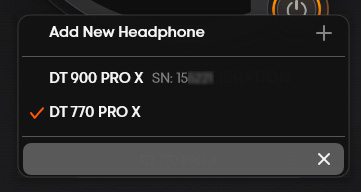
Various beyerdynamic headphones can be set up in the plug-in and switched directly through a selection menu. The list of supported beyerdynamic headphones is pleasingly long. The various versions (editions and different impedances) of the DT 770, DT 880, and DT 990, all headphones in the DT PRO X and DT 1xx0 series, as well as the affordable DT 270 PRO and even the in-ear headphones in the DT7x IE series, which we have already tested, are available for selection.
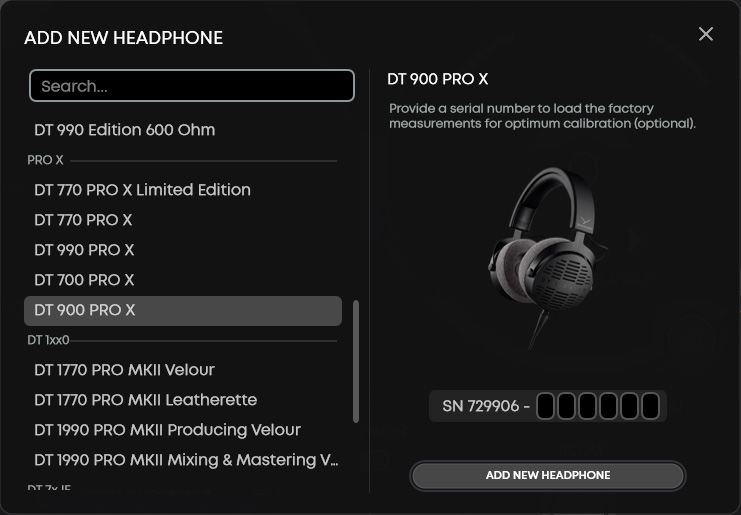
The DT 1770 PRO MK II, DT 1990 PRO MKII, DT900 PRO X, and DT 700 PRO X headphones have another special feature. Beyerdynamic stores the measurement reports from the manufacturing process for each of these headphones individually. If you select one of these headphones in the plug-in, you can also use the stored measurement curve for additional individual calibration by entering the serial number, taking the manufacturer's tolerances into account. The serial number on beyerdynamic headphones can be found not only on the box but also on the inside on the right side of the headband.
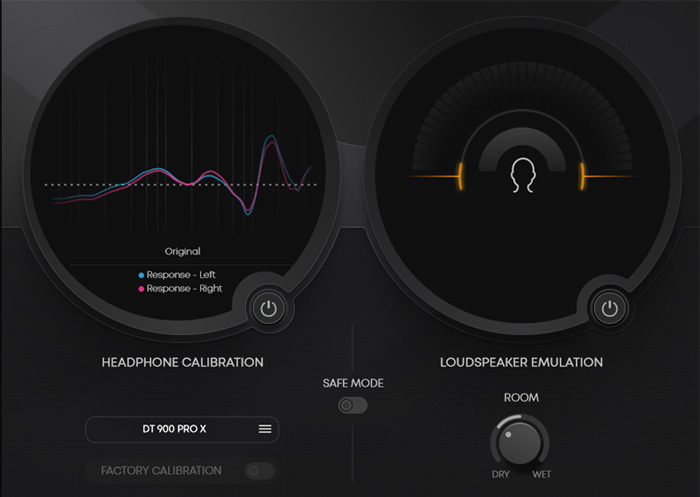
Let's take a look at the individual calibration options that the plug-in offers. When the calibration functions are turned off, the transfer function is displayed - and, for headphones with a stored profile, the profile is also displayed individually for the left and right channels. For other headphones without a stored profile, an averaged curve is used.
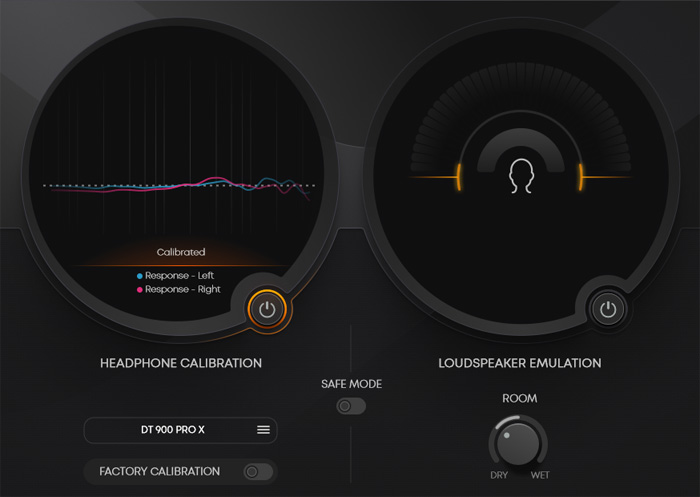
If you turn on headphone calibration, the basic frequency range for the selected model is corrected (see figure above).
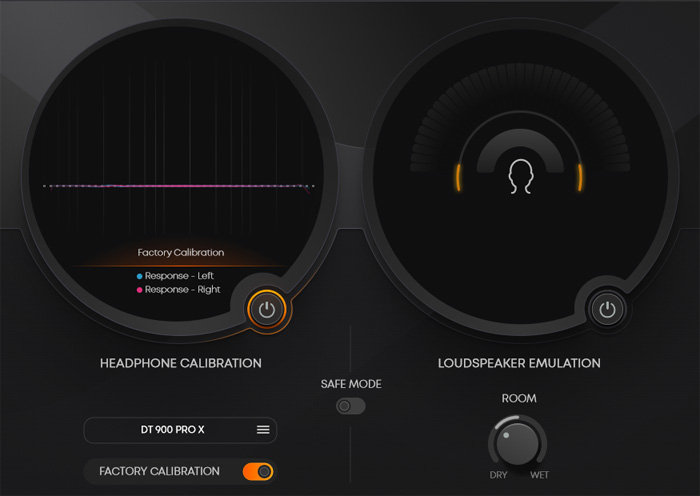
The switchable FACTORY CALIBRATION function then also corrects the individual differences between headphones to a target curve.
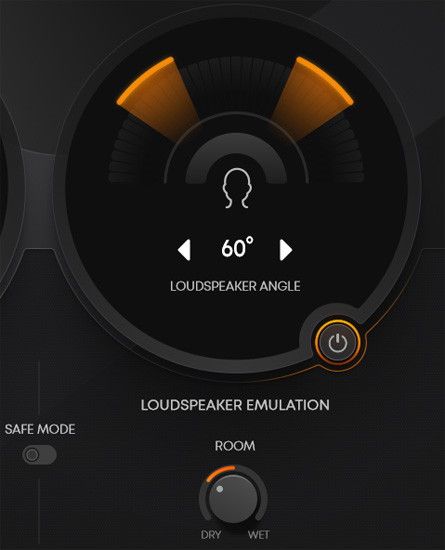
The speaker simulation is located on the right side of the plug-in. Here, you can select the virtual loudspeaker setup in three positions at angles of 40, 60, and 80 degrees, which of course also changes the perceived stereo image width.
The speaker simulation implements various things, including virtualization in the room with an HRTF, which, among other things, provides off-head localization, crossfeed as it occurs with speaker playback in a room, and, of course, a room is also simulated. The SAFE MODE switch reduces the speaker level to prevent hearing damage.
In Practice
We had the opportunity to test the plug-in with a whole range of beyerdynamic headphones, namely: DT 1990 PRO MKII, DT 900 PRO X, DT 700 PRO X, DT 770 PRO X, and also the in-ear headphones from the DT7x IE series. We used Lake People G108 and SPL Phonitor 2 as headphone amplifiers.
The plug-in is very easy to use and is clearly laid out. We tested the plug-in under Windows 11 as a VST 3 plug-in on an AudioKern B14 DAW from Digital Audio Service. Under WaveLab 13, the CPU usage in the Windows Task Manager rose from 5 to 6 percent in a mastering project. In a Nuendo 14 project, the base load in the performance display without HEADPHONE LAB was just over 25 percent, and with the plug-in, it rose to just under 30 percent. In summary, it can be said that the CPU load of the plug-in is extremely low and can also be used without any problems on laptops with limited CPU resources. This is not a given for all products with speakers and room simulations. Products with comprehensive room simulation are significantly more resource-intensive than HEADPHONE LAB.
Before we get to the sound and evaluation, here are a few basic things to know about listening with headphones. When listening with headphones without special processing, we have an unnatural sound image, and the perception differs radically from listening through speakers. As an experienced sound engineer, however, you can cope with this. However, switching from headphones to speakers is always a problem, especially if you have to do this frequently in a production because the sound is quite different. A sound reproduction through speakers is certainly more natural. With headphones, we have the advantage of no imposed additional space but also the disadvantage that the perceived stereo image width is significantly greater than with speaker perception, and we also have in-head localization. Headphones also have different evaluation curves from model to model, resulting in a significantly diverse sound. In addition, there are individual variations in headphone parameters due to manufacturing tolerances. So what could be more obvious than using a plug-in that solves all these problems, and that's exactly what HEADPHONE LAB does.
When compensating for the frequency-dependent headphone transfer function of a particular model, you compensate for a target curve that the manufacturer defines as optimal. You can also see that the compensation curves differ significantly from model to model. When you use headphones whose manufacturing protocol and transfer function are stored via the serial number, you will notice that there is still a difference in sound when you activate the FACTORY CALIBRATION function. Although not to the same extent as with HEADPHONE CALIBRATION, the individual differences between the left and right drivers are now also compensated. Compared to a sound without any compensation, the difference in perception is very clear.
If LOUDSPEAKER EMULATION is also activated, the stereo image width is reduced by virtual crossfeed and reduced to the level of loudspeaker reproduction, and a room is also added. This virtual room is not particularly large in HEADPHONE LAB, which is a good thing because otherwise the sound would become too diffuse and the reproduction of detail would suffer.
The simulated room size is ideal in HEADPHONE LAB and does not seem to change when adjusting the DRY/WET knob. Instead, the effect of the speaker simulation is changed with the knob. In most cases, a setting above 50 percent often doesn't sound quite as natural. But of course, that's subjective. As the value of the ROOM parameter increases, the stereo image width eventually becomes smaller. In my experience and according to my taste, a range from 25 to 50 percent is therefore optimal.
If you have activated both HEADPHONE CALIBRATION and LOUDSPEAKER EMULATION, you should first listen for a minute to evaluate the sound. Once your ears have adjusted, you will notice how the plug-in has significantly improved the overall sound when you switch back to pure headphone playback without any compensation. When comparing HEADPHONE CALIBRATION plus LOUDSPEAKER EMULATION activated via headphones with the sound from the studio speakers, you will notice how close you now are to the speaker playback in terms of sound. Listening through headphones now sounds much more natural - and you can also listen more relaxed than without compensation.
When comparing the many headphones we use for testing, it is apparent that, despite compensation, individual differences are still noticeable. These differences are attenuated but cannot be compensated for by pure compensation at the frequency and phase response level, such as transient response and dynamically dependent operating parameters, which are always present in electroacoustic transducers. For example, the bass range on the DT 1990 PRO MKII is slightly more pronounced and fuller. Despite the non-individual FACTORY CALIBRATION, the basic compensation also works very well with the DT 770 PRO X. The DT7x IE series in-ear headphones are the furthest removed from the other headphones in terms of sound perception when using HEADPHONE LAB, but this is hardly surprising given their completely different technical principle. Nevertheless, the use of HEADPHONE LAB makes perfect sense here too, for example for users who already work with appropriate live software on stage, where audio plug-ins such as VST Live from Steinberg or stage monitors from Tracktion can also be integrated.
HEADPHONE LAB is not only a solution for on-the-go when there is no speaker monitoring option but also definitely for use in the studio. When mastering and mixing, you should periodically deactivate the plug-in using the BYPASS function to check the stereo image width and sound. Most end users certainly do not use tools such as HEADPHONE LAB, so this must of course be considered in the mix or master. A balance is therefore required here. Nevertheless, there is no alternative to using tools such as HEADPHONE LAB.
Conclusion
As I have always been a big advocate of listening with headphones, I am delighted that more and more software tools are being made available for optimizing headphone sound. beyerdynamic has done a lot right with HEADPHONE LAB. Compared to other tools from other manufacturers, it offers a very practical and sonically excellent solution - and what's more, it's free, which means it adds significant value to beyerdynamic headphones. I highly recommend trying it out to all users of current beyerdynamic headphone products in sound production.
From the initial announcements about the product, I interpret that this is not the last step for beyerdynamic toward binaural headphone listening. After the very successful debut with HEADPHONE LAB in this area, we can look forward to the future with excitement. So keep up the good work, beyerdynamic...